Step 1
Open the SLR wheel image, convert to Smart Object, and duplicate the resulting layer so that you have a copy.

Step 2
Use the Elliptical Marquee Tool to create a selection around the wheel. If needed, you can adjust the selection by going to Select > Transform Selection.

Step 3
Go to Select > Modify > Feather, and type in 15. This will help blend in both layers seamlessly instead of creating harsh lines.

Step 4
Make sure that the copy layer is selected, then click the Add layer mask icon down the Layers panel. This way, only the wheel will be affected by any filters applied to the layer.

Step 5
Applying the Spin Blur to the Wheel
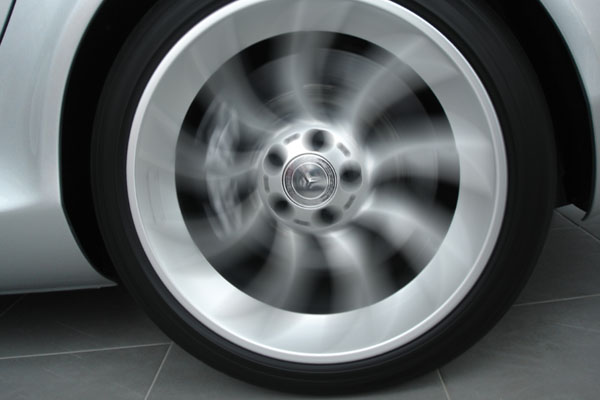
Click the copy layer's thumbnail, then go to Filter > Blur Gallery > Spin Blur. Reposition the ellipse on top of the wheel (and its center over the wheel's center as well), then change the settings as you like, The Blur Angle is set to 15, the Strobe Strength to 15, the Strobe Flashes to 2, and the Strobe Flash Duration to 3.

Step 6
The Spin Blur won't cause any problems, since it only affects the wheel. But the mask comes to use next, as it will prevent the Path Blur from affecting the wheel.
final image

No comments:
Post a Comment